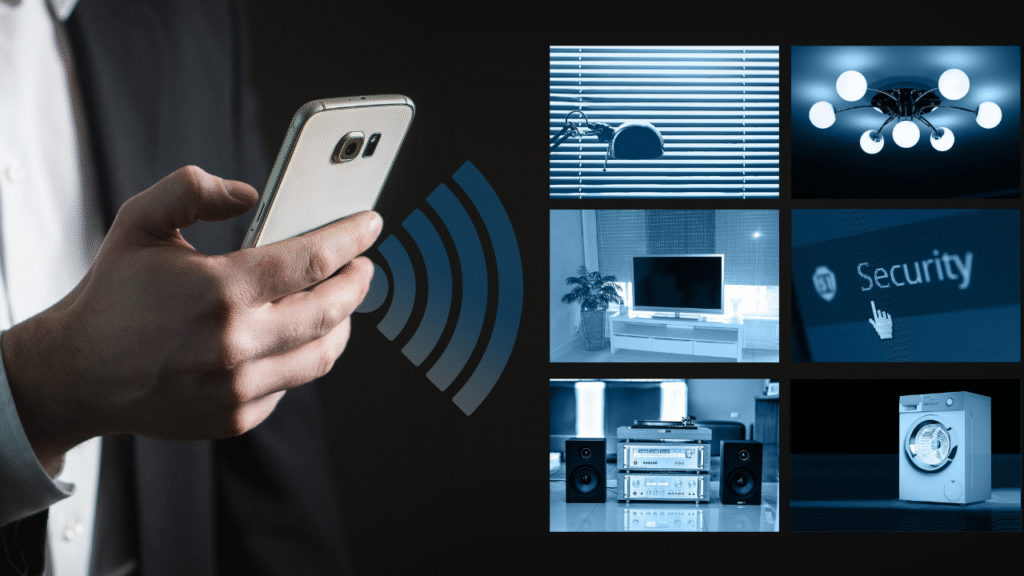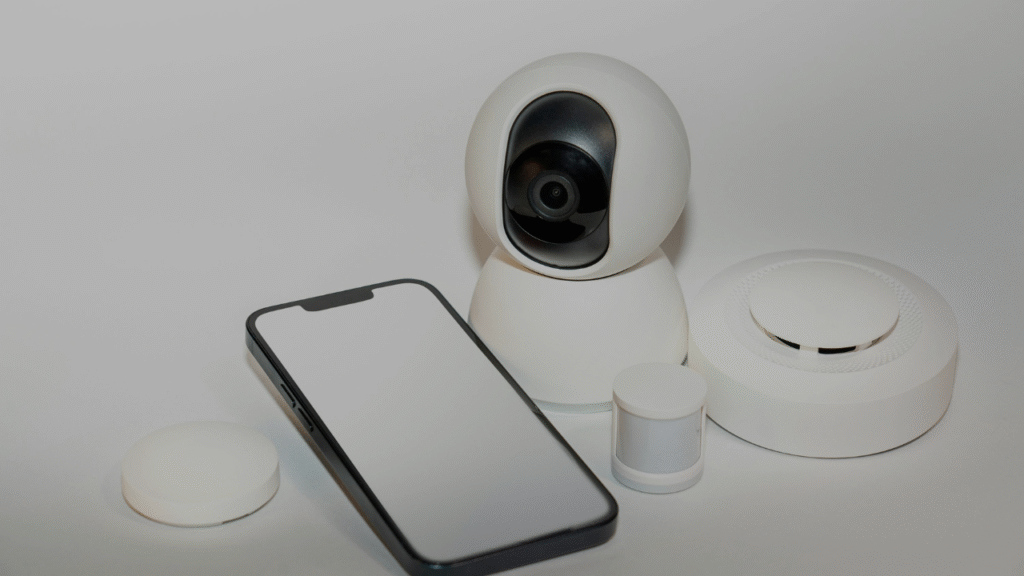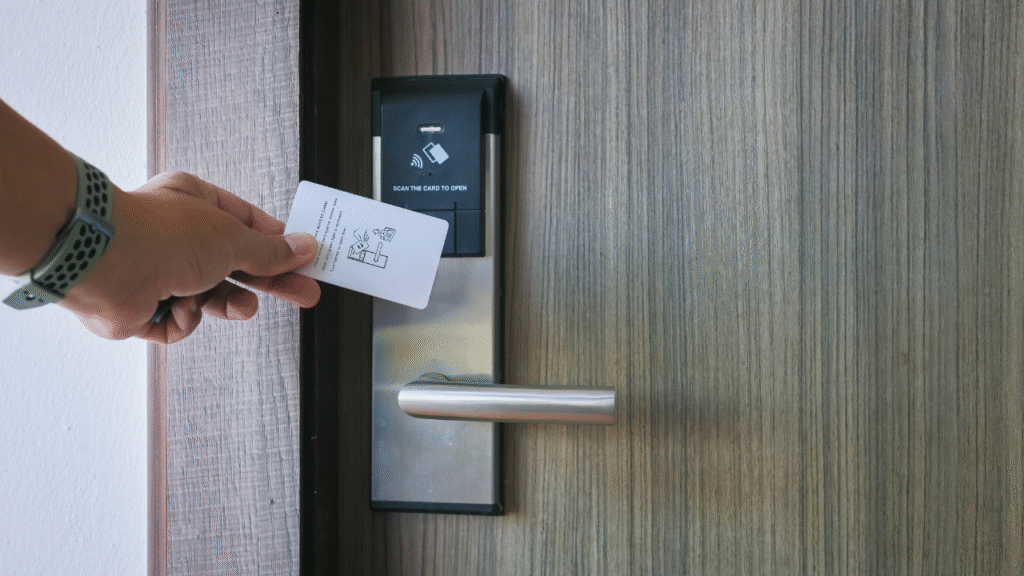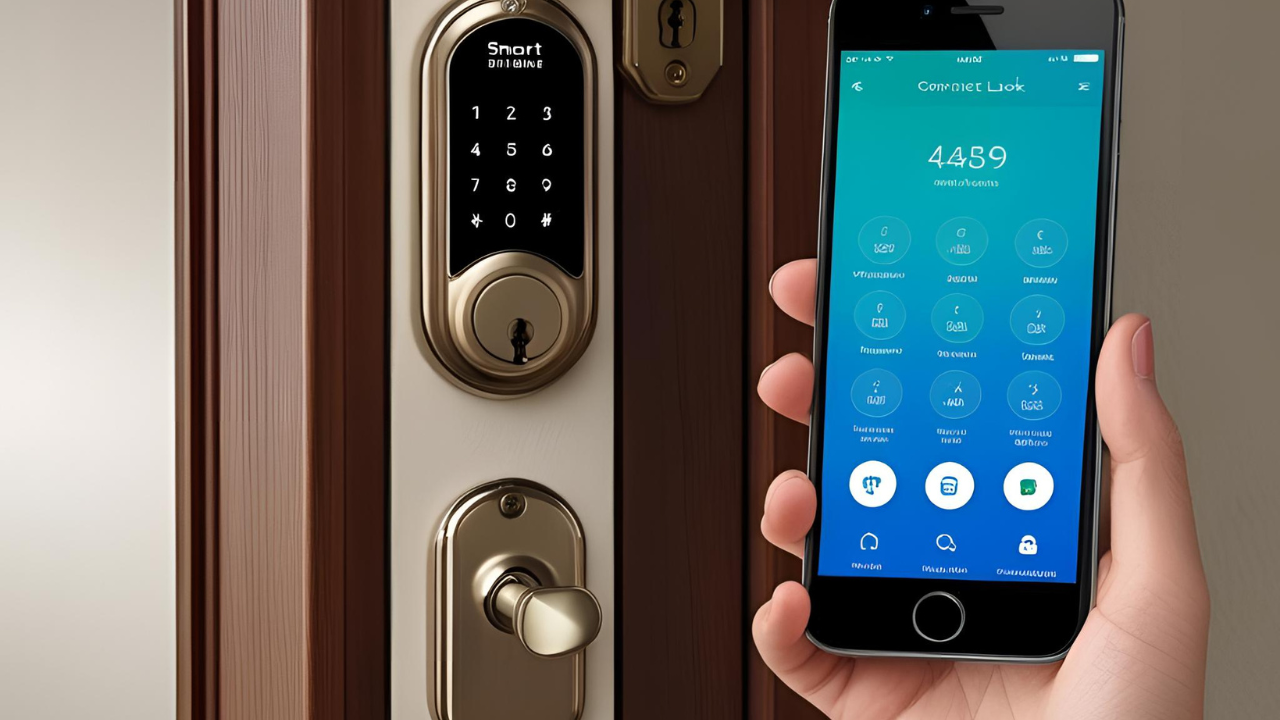

Talking to your home used to sound like science fiction. Now it’s just part of everyday life. With voice assistants like Alexa, Google Assistant, and Siri, you can control lights, music, and even your home security system. Smart speakers are more than just fun. When used with home security devices, they add real value. You can lock doors, arm alarms, and check cameras—without lifting a finger. Let’s break down how these voice assistants work with home security and what to know before you connect them.

How Voice Assistants Work with Security Systems

Voice assistants connect to smart devices over Wi-Fi. When you give a command, the assistant sends that request to your device. Say, “Alexa, lock the front door.” If your door lock is connected, it responds right away. The same goes for security cameras, sensors, and alarm systems. You can also set routines. For example, say “Goodnight,” and your assistant can lock doors, turn on cameras, and shut off lights all at once.

Alexa and Home Security

Amazon Alexa works with many smart security devices. Some of the most popular brands include Ring, SimpliSafe, Arlo, and August.

What Alexa Can Do:

  • Arm your security system
  • Lock smart locks
  • Show camera feeds (on Echo Show)
  • Send alerts or warnings
  • Control smart lights and plugs

You can say things like:

  • “Alexa, arm Ring.”
  • “Alexa, is the front door locked?”
  • “ show me the backyard camera.”

It works best with Echo speakers and displays. If you use Ring or other Amazon-owned gear, the setup is quick and smooth.

Security Tip: You can protect voice commands with a PIN. This keeps others from disarming your system by voice.

Google Assistant and Home Security

Google Assistant is built into Nest speakers and smart displays. It works well with Google Nest devices and many others like ADT, Arlo, and Yale.

What Google Assistant Can Do:

  • Lock doors
  • Arm your security system
  • Show camera feeds on smart displays
  • Alert you to motion or sound
  • Run routines with voice commands

Sample commands:

  • “Hey Google, lock the front door.”
  • “Hey Google, is the alarm armed?”
  • “Show me the front porch camera.”

Google Assistant understands natural speech well. It also connects with Android phones, smart TVs, and more.

Security Tip: Like Alexa, you can set a voice code. It’s good to use for actions like unlocking or turning off alarms.

Siri and Home Security (Apple HomeKit)

Siri works on iPhones, iPads, and HomePod speakers. It controls smart devices that support Apple’s HomeKit platform. Siri is the most private of the three. All your data stays on your Apple devices or in iCloud, not shared with others.

What Siri Can Do:

  • Lock and unlock doors
  • Arm and disarm alarms
  • Show live camera feeds (on iPhone or iPad)
  • Run home scenes with one command

Examples of voice commands:

  • “Hey Siri, lock the back door.”
  • “Turn on Home Security.”
  • “Show the front yard camera.”

HomeKit supports brands like Eufy, Logitech, Yale, and Aqara. It works well with iPhones and other Apple products.

Security Tip: Use Face ID or Touch ID when unlocking doors or turning off alarms. It’s built-in and works fast.

Choosing the Right Voice Assistant

Each assistant has strengths. Here’s a simple breakdown:

FeatureAlexaGoogle AssistantSiri
Device SupportVery broadBroadLimited to HomeKit
Camera DisplayEcho ShowNest HubiPhone/iPad only
Smart Lock ControlYesYesYes
Privacy ControlsGoodGoodVery strong
Best ForEcho + RingNest usersApple users

Pick the assistant that matches the devices you already have. If you’re deep in Apple’s system, stick with Siri. If you use Android, go with Google. If you love Amazon gear, Alexa is your best bet.

Setting Up Voice Control for Security

Getting started is simple:

  1. Get the apps.
    Download the voice assistant app (Alexa, Google Home, or Apple Home).
  2. Connect your devices.
    Use the app to link your security system or smart locks.
  3. Enable permissions.
    Turn on voice control features and set up PINs where needed.
  4. Try basic commands.
    Start with “Lock the door” or “Arm the alarm.”
  5. Create routines.
    Set up daily actions like “Good night” or “I’m leaving.”

Most brands offer setup guides inside their apps. Follow the steps and test your system.

Voice Control: What’s Safe and What’s Not

Voice control adds ease, but it has limits. Here are some safety tips:

  • Don’t allow disarming by voice.
    Someone outside could yell through a window and trick the system.
  • Use PINs or biometrics.
    Require a code or fingerprint to unlock doors.
  • Be careful with shared homes.
    Kids or guests may have access if your assistant isn’t locked.
  • Mute speakers when away.
    If no one’s home, turn off the mic. It adds an extra layer of safety.
  • Check logs often.
    Review voice history in your app to see what commands were used.

Used smartly, voice control is both helpful and secure. It just takes a few habits to keep it that way.

home security

What You Can Control with Voice

Here are the main security items that work with voice:

  • Door locks: Lock or check if doors are locked. Some allow unlocking with extra steps.
  • Cameras: See live feeds or ask for the last event.
  • Alarm systems: Arm the system. Disarming usually needs a code.
  • Lights: Turn on lights when motion is detected.
  • Sensors: Get updates when doors or windows are opened.

You can even combine them. Say, “Alexa, I’m going out,” and it can lock doors, arm the alarm, and turn off lights.

The Future of Voice and Security

Voice tech will only grow smarter. Soon, assistants may know when to act without being told. For now, they make your life easier without much cost or effort. You don’t need a full smart home to use voice control. Start small—maybe a smart lock or camera. Then add more as you go. Whether you choose Alexa, Google, or Siri, voice control brings a new level of comfort and safety to your home.

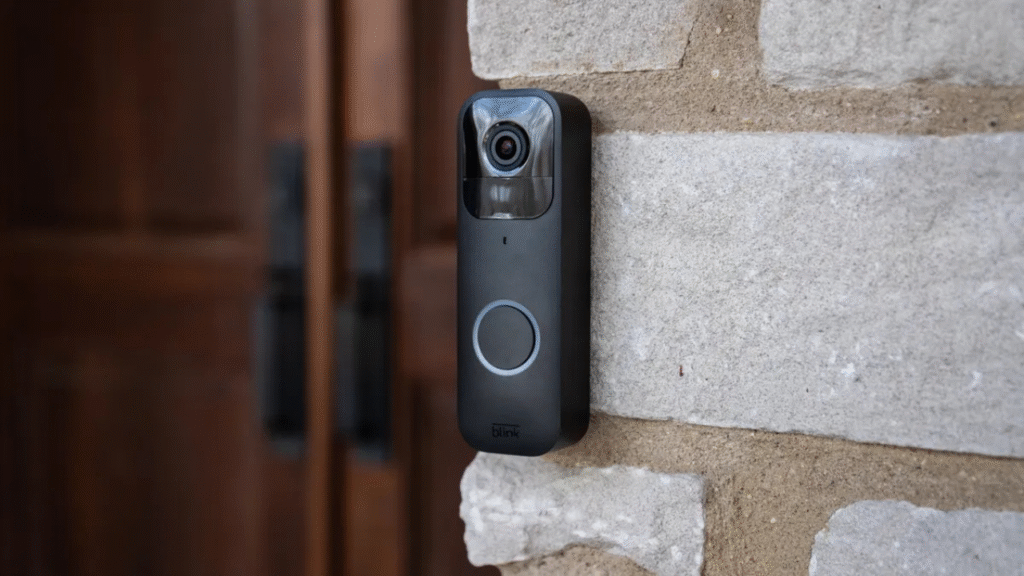
.Smart doorbells keep getting better. In 2025, they are sharper, faster, and easier to use. You can see who’s at your door, talk to them, and even record what happens outside—all from your phone. Whether you’re upgrading or buying your first smart doorbell, this guide will help you choose the right one. We’ll go over the top models, their features, how well they perform, and what they cost.

Let’s get started.

Ring Video Doorbell Pro 3

Price: $229
Video Quality: 1536p HD
Field of View: 160° horizontal
Storage: Cloud (with subscription)

The Ring Pro 3 is a top choice in 2025. It offers clear video day and night. The square video view lets you see from head to toe. Two-way talk works well, with very little delay. It connects to your Wi-Fi and lets you get alerts on your phone. You can also link it with Alexa for voice control. One downside: there’s no free storage. You’ll need a Ring Protect plan to save videos. It starts at $4 a month.

Best for: People who want clear video and already use Alexa.

Google Nest Doorbell (Wired, 2nd Gen)

Price: $179
Video Quality: 960 x 1280 HD
Field of View: 145°
Storage: 3 hours free, or pay for Nest Aware

The Nest Doorbell gives great alerts. It tells you if it sees a person, pet, or package. You can talk through it with clear sound. The design is slim and fits most homes. Setup is easy if you already have doorbell wiring. Google offers three hours of free event storage. If you want more, Nest Aware starts at $6 per month.

Best for: Google Home users or people who want smart alerts.

Arlo Essential Video Doorbell

Price: $149
Video Quality: 1536p HD
Field of View: 180°
Storage: Cloud and local (with base station)

Arlo’s doorbell has a wide view and shows the full front step. It works with Alexa, Google, and Apple HomeKit. You can answer with voice or video. It even calls your phone when someone presses the bell. It works best with the Arlo base station. This allows you to store videos without paying monthly.

Best for: Smart home users who want flexible storage options.

Eufy Video Doorbell Dual (Battery)

Price: $199
Video Quality: 2K
Field of View: Top: 160°, Bottom (Package Cam): 120°
Storage: Local (no monthly fees)

Eufy’s dual camera setup is smart. One camera looks at faces. The other watches your packages. Both cameras record in sharp detail. No subscription is needed. It stores videos on the device itself. The battery lasts about 6 months. It also uses AI to tell you who’s at the door. It can tell the difference between a person and a moving tree.

Best for: Buyers who want to avoid monthly fees and see their packages.

Blink Video Doorbell

doorbell

Price: $59
Video Quality: 1080p HD
Field of View: 135°
Storage: Cloud (with plan) or local (with Sync Module 2)

The Blink is budget-friendly but still useful. It records in HD and offers basic features. It works with Alexa and sends alerts to your phone. You can store clips to the cloud for $3 per month. Or, buy the Sync Module 2 to use USB storage without extra cost. Setup is easy. You can choose wired or battery-powered use.

Best for: Budget shoppers and Amazon Alexa users.

Wyze Video Doorbell v2

Price: $69
Video Quality: 2K
Field of View: 150°
Storage: Cloud or microSD (coming soon)

Wyze offers strong features for the price. The 2K video is crisp and works well in low light. You can use cloud storage or, soon, a microSD card. It works with Alexa and Google. You get person alerts, night vision, and two-way talk. One drawback: it needs a wired setup. But once installed, it runs smoothly.

Best for: People who want great value without giving up quality.

Logitech Circle View Doorbell

Price: $199
Video Quality: 1600 x 1200 HDR
Field of View: 160°
Storage: iCloud (Apple HomeKit Secure Video)

This one is for Apple fans. It works only with HomeKit. But if you use iPhones or iPads, it’s a solid choice. Video is sharp, and you get smart alerts. It stores video in iCloud with end-to-end encryption. You must have an iCloud+ plan to save clips. The design is simple, and the camera works great at night.

Best for: Apple Home users who want strong privacy and smooth setup.

Features to Look For

When choosing a smart doorbell, focus on what matters most to you. Here are the top features people care about:

  • Video quality: Clear video lets you see faces and details. 1080p is good, 2K is better.
  • Field of view: A wider view shows more of your front porch.
  • Two-way audio: Lets you speak to people outside, whether you’re home or not.
  • Smart alerts: AI can tell the difference between people, pets, and motion.
  • Night vision: Helps you see clearly in the dark.
  • Storage: Choose between cloud (monthly cost) or local (no fees).
  • Smart home use: Make sure it works with Alexa, Google, or Apple—whatever you use.
  • Power source: Some doorbells run on batteries. Others need wires. Pick what works best for your setup.

How Much Should You Spend?

You don’t need to spend a lot. The best doorbells range from $60 to $250. More expensive ones offer sharper video, better features, or free storage. If you’re just getting started, try Wyze or Blink. For top features, Ring Pro 3 or Eufy Dual are strong picks. Don’t forget to check for extra costs. Some models need a subscription to save clips or unlock smart alerts.

Conclusion

Smart doorbells in 2025 are smarter, cheaper, and easier to install than ever. Whether you’re on a tight budget or want the best of the best, there’s something for you. Pick a model that fits your home, your phone, and your routine. Make sure it gives you the right mix of video quality, smart alerts, and storage options. You don’t need the most expensive one. You just need the one that works best for you.

Everyone wants to feel safe at home. But many think home security costs too much. The good news is—it doesn’t have to. You don’t need to buy the latest tech or pay for monthly plans. There are many simple ways to make your home safer without spending a lot of money. Some options cost nothing at all. Let’s look at smart, low-cost ways to boost your home security today.

Lock Every Door and Window of your Home

This may seem basic, but it’s often missed. Most break-ins happen through unlocked doors or windows. Make it a habit to check locks before bed or when leaving home. If any locks are loose or broken, replace them. A strong deadbolt on each door adds real protection. Window locks also matter. Use latch locks or add cheap sliding locks to old frames.

Install Motion Sensor Lights

Burglars don’t like light. It makes them easy to spot. One simple fix is motion lights. Place them near entry points—doors, backyards, garages. When someone walks by, the light turns on. It’s often enough to scare people away. You can find battery-powered models for less than $20. Solar options are great if you want to save on power bills.

Use Window Stickers and Yard Signs

You don’t need to own a full alarm system to make people think you do. Warning signs can work on their own. Put up a few alarm or camera signs in clear view. Add window stickers that say “24/7 monitoring.” These items cost just a few dollars but may stop someone from trying to break in.

Get a Fake Camera

Fake cameras look real and are cheap. Some even have a blinking red light. Place one above your front door or near the driveway. It’s an easy way to scare off intruders. Just make sure it looks real. Don’t hang it where it’s easy to reach. Some people pair fake cameras with motion lights for double effect.

home

Trim Bushes and Trees

Tall plants near your home give cover to thieves. Keep bushes low, especially near windows. Cut back tree limbs that reach the roof. A clean, open yard makes it harder for someone to sneak up without being seen. It also helps your neighbors keep an eye out for anything strange.

Start a Watch Routine With Neighbors

You don’t need a full neighborhood watch program. Just talk to your neighbors. Let them know when you’ll be away. Ask if they can keep an eye on your place. Offer to do the same for them. People watching out for each other makes the whole area safer. And it doesn’t cost a thing.

Use Smart Plugs and Timers in Home

You can buy cheap outlet timers to control your lights or TV. Set them to turn on at night or while you’re away. This makes it look like someone is home, even when they’re not. Smart plugs can do the same but work with your phone. You can find good timers for under $10. They work best when paired with motion lights or window signs.

Reinforce Your Home Doors

Your door may have a good lock—but what about the frame? Many doors break from a strong kick. Use longer screws in the strike plate (the metal part on the frame). Replace the plate with a stronger one if needed. You can also buy a door reinforcement kit for under $30. It adds metal parts that make it harder to break down the door.

Don’t Hide Keys Outside of your Home

A key under a mat or in a flower pot is a big risk. Thieves know where to look. Instead, give a spare key to a trusted friend or neighbor. If you must keep one outside, use a lock box with a code. Some lock boxes mount to a wall or railing and cost less than $20.

Use Curtains or Frosted Film

Keep people from seeing inside your home. If they can’t see what’s inside, they may move on. Use curtains in rooms that face the street. For windows where you still want light, try frosted film. It sticks on and blocks the view. It’s cheap, easy to install, and gives you more privacy.

Use a Doorbell Camera (or a Dummy)

Doorbell cameras are great for safety and alerts. They let you see who’s outside, even when you’re not home. But if that’s too pricey, consider a dummy model. Some fake ones look real and have lights or camera covers. Pair it with a “recording in progress” sign. It adds one more layer of doubt for anyone thinking of breaking in.

Keep Your Home Yard Clean

An empty house is easy to spot. Overflowing mail, long grass, or full trash bins send the wrong message. Pick up mail daily or have someone do it for you while you’re away. Bring in packages as soon as they arrive. Clean yards tell people you’re home and paying attention.

Lock Your Wi-Fi and Smart Devices

Even if you don’t use smart cameras, you probably have Wi-Fi at home. Make sure it’s locked with a strong password. Don’t use “admin” or “123456.” Choose something unique. Also, update your router software when needed. If you use smart devices, change the factory settings and use two-step login. A locked network keeps your data and devices safe.

Put Valuables Out of Sight

Don’t leave phones, laptops, or bags near windows. Hide them or use curtains to block the view.If someone sees an easy target, they may try to grab it fast. Even a quick smash-and-grab can lead to big losses. Make it hard for them to see anything worth stealing.

Stay Safe on Social Media

Think before you post. Don’t share vacation plans or say you’re not home. Wait until you’re back before posting photos. Thieves watch public posts and look for easy chances. If you share something personal, make sure it’s set to “friends only.”

Do a Quick Home Check

Walk around your home like a stranger. Look for weak spots—unlocked sheds, broken lights, open windows. Check doors and gates. Try to think like someone who wants to break in. Fix anything that looks easy to get through. Do this once a month. Small changes can make a big difference.

Conclusion

Home security doesn’t need to be expensive. You can do a lot with $100 or less. Start with the basics—locks, lights, and habits. Then add low-cost tools like timers, signs, and fake cameras. Keep your home clean and your yard open. Be smart online and offline. The best safety plan is simple: stay alert, stay prepared, and make your home look lived-in. You don’t need the newest gear to protect what matters most. Just smart steps and steady habits.

Smart locks have changed how we protect homes, offices, and rental spaces. They make keys optional. They let you unlock doors with a phone, code, or even your face. In 2025, smart locks are getting smarter, faster, and safer. Let’s look at what’s new this year and what you can expect if you’re planning to buy or upgrade a smart lock.

Smart Locks with Built-In AI

The newest smart locks now use AI to learn your habits. They know when you come home. They notice who enters and when. If something odd happens—like a door opening at midnight—they’ll send you a warning. These locks can also spot patterns. If you always lock the door at 9 PM, but one night you don’t, the lock can remind you. This feature adds peace of mind and better control. Some models even use voice recognition. That means your lock will only open for people it knows by sound.

Face and Finger Scanning Are Better

In 2025, face and fingerprint scans are faster and more secure. New smart locks use 3D face maps, which are hard to fake. They also scan your finger in less than a second. This is good news for people who forget passcodes or lose phones. You don’t need a key or app—just your face or finger. Some locks now scan from a distance, so you don’t have to touch anything. This helps keep things clean and fast, especially at busy doors.

Voice Control with Better Privacy

Voice assistants like Alexa, Google, and Siri now work more closely with smart locks. In 2025, you can unlock your door by saying a short phrase—but only if your phone is close by. This keeps your home safe from random voices outside. Locks now ask for a PIN or phone match before unlocking by voice. You can also use voice to check if your door is locked or to lock it if you forgot.

Smart Guest Access for Airbnb and Rentals

Many smart locks now come with built-in tools for short-term rentals. If you rent out your space, you can send a time-limited code to your guests. No need to meet them or give them a real key. In 2025, these codes can auto-expire once a guest checks out. Some locks even link with booking sites like Airbnb and Vrbo to make things easier. You also get alerts when guests check in or out. This adds a new layer of safety for hosts.

Offline Mode and Local Storage

Internet problems can mess with smart devices. That’s why many 2025 locks now offer offline access. Even without Wi-Fi, they still let you unlock with a code or fingerprint. Some locks now store access logs on the device, not just the cloud. This gives more control and privacy. You can still see who opened your door without needing an app or account. Offline access is key for people in areas with weak internet or for those who value privacy.

Built-In Cameras and Doorbells

New smart locks now come with small cameras. These cameras let you see who’s at the door, even before they knock. Some models also include doorbell buttons. This makes it easier to handle deliveries or check on visitors. The lock sends live video to your phone so you can decide whether to open the door. Some cameras use motion alerts to catch movement near your entrance. This feature helps stop porch theft and gives you full control, even when you’re not home.

Smart Locks Made for Kids and Seniors

In 2025, more lock makers are thinking about families. New features help both kids and older adults feel safe. Some locks unlock with a tap card or key tag. These are great for kids who don’t have a phone or can’t remember codes. Other locks have voice alerts that say things like “door locked” or “door open.” These can help seniors who may not see phone alerts or remember to check. You can also set rules for certain users. For example, your kids’ code might only work between 3 PM and 6 PM.

Stronger Batteries and Solar Charging

Smart locks used to need new batteries every few months. Now, many run for a full year or more on one set. Some locks even have solar panels. These small panels sit above the lock and keep it charged in daylight. Others use USB-C ports for quick charging. This means no more rushing to the store for new batteries. Low battery alerts are also better. You’ll get early warnings so your lock doesn’t die at the wrong time.

Better Hacking Protection

With any smart device, hacking is a risk. But new smart locks in 2025 now use stronger tools to stop break-ins. Many locks use end-to-end encryption. This keeps your data safe, even on public Wi-Fi. You can also turn off remote access if you want full control. Some models even shut down after too many failed tries. Look for locks with two-factor login. This adds a second step when logging into the app. It could be a code, fingerprint, or face scan.

Custom Apps and Widgets

Smart lock apps are now more useful and easier to use. You can add lock widgets to your phone screen for quick access. Some let you set custom rules like:

  • Lock every night at 10 PM
  • Send alerts if door opens while you’re at work
  • Auto-lock 30 seconds after opening

The app also shows a full history. You’ll know who came and went—and when. It’s a great way to track your kids, staff, or renters.

smart

What to Expect Next

Smart locks are growing fast. In 2025, they offer better tech, more safety, and smoother use. The new features help you control your space without stress. Still, the basics stay the same: keep doors locked, know who has access, and get alerts when something’s off.

When buying a smart lock, think about:

  • Who needs to get in
  • How often you want updates
  • If you prefer apps, codes, or face/finger unlock
  • If you want remote access
  • Your home’s Wi-Fi and power setup

Pick a lock that fits your daily life. Don’t buy extra features you won’t use.

Conclusion

Smart locks in 2025 are faster, safer, and more useful than ever. Whether you’re at home, on vacation, or running a rental, these locks give you more control. No more lost keys. No more wondering if the door’s locked. Just smart, simple safety you can trust. Start small. Pick a lock with the tools you need now. You can always upgrade later. Safety starts at the door—and now, the door is smarter than ever.

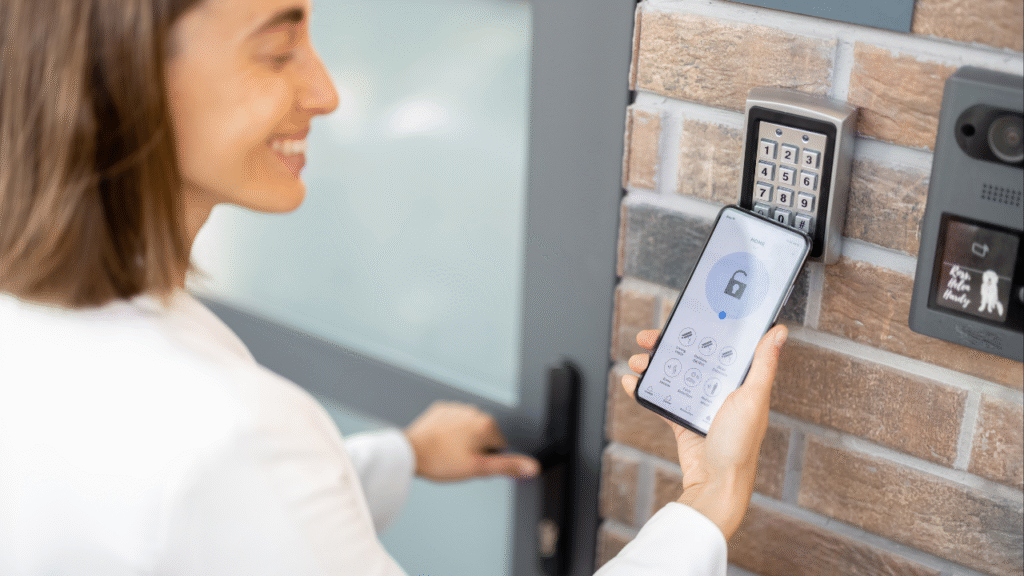
Smart locks make your home safer and your life easier. No more hiding spare keys or rushing home to let someone in. With just a tap on your phone, you can lock or unlock your door from anywhere. But before you enjoy all that, you need to set it up. Good news—connecting a smart lock to your home network is simple. You don’t need to be a tech expert. Most people can do it in under 20 minutes.

This guide will show you exactly how to do it, step by step.

Check What You Need

Before you open the box, make sure you have everything ready.

You’ll need:

  • A Wi-Fi router
  • A smartphone or tablet
  • The smart lock and its parts
  • The lock’s app (you can find it in the App Store or Google Play)

Also, make sure your Wi-Fi is working well. A weak signal at your door can cause setup problems. If your smart lock connects by Bluetooth or needs a hub (like Zigbee or Z-Wave), check the box for details.

Install the Smart Lock

Start by removing your old deadbolt or door lock. Use a screwdriver and follow the instructions in the smart lock manual. Most smart locks work with standard doors. If your door is very thick, thin, or misaligned, you might need help. Once the old lock is off, place the new smart lock in. Most models include clear instructions and labeled parts. Tighten all screws. Make sure the lock is level and the latch moves smoothly. If it sticks, fix it now. A stuck latch can stop the motor from turning.

Power It Up

Now add the batteries. Most smart locks use AA batteries. Some come with them, some don’t. When you insert the batteries, the lock may beep, flash, or move. This means it’s ready. Some locks have a small button or pin you press to start setup. Look at the instructions to be sure. Keep the cover off for now. You might need to press a reset button.

Download the App

Go to the App Store (iPhone) or Google Play (Android). Search for your smart lock brand.

Common apps include:

  • August
  • Yale Access
  • Schlage Home
  • Kwikset App
  • Level Lock App

Install the app and open it. You may need to create an account with your email and a password. Some apps also ask for your phone number for security alerts. Once you’re in, choose “Add New Device” or something similar. The app will walk you through the next steps.

Connect to Wi-Fi or Bluetooth

There are two common types of smart lock connections:

  1. Wi-Fi
  2. Bluetooth

Some locks use only Bluetooth at first. To use Wi-Fi, they need a small plug-in bridge that talks to your router. If your lock connects directly to Wi-Fi:

  • Go to your phone’s settings
  • Join the lock’s temporary Wi-Fi network
  • Return to the app
  • Choose your home Wi-Fi
  • Enter your Wi-Fi password

The lock will now connect to your network. If your lock needs a hub or bridge, the app will show you how to plug it in and pair it. Most bridges connect through a standard outlet near your door. Bluetooth locks usually pair by holding your phone near the lock and pressing a button. The app will guide you.

Test the Smart Lock

Once the lock is paired, test it. Use the app to lock and unlock the door. Try it while standing close. Then test it from across the room. If your lock is on Wi-Fi, you can try it from outside your home too. Make sure everything works smoothly. If not, check your batteries or Wi-Fi signal. Some apps let you name your lock (like “Front Door”) and choose a color icon.

Set Up Smart Lock Access

Now you can give access to others. Most smart lock apps let you:

  • Create passcodes
  • Set schedules (like only on weekdays)
  • Share app access with family or roommates
  • Remove users anytime

For guests, you can set up one-time codes. These are great for deliveries, cleaners, or friends. Each app has its own way of doing this, but it’s usually quick and clear.

Add Voice Control (Optional)

If you use Alexa, Google Assistant, or Siri, you can connect your smart lock for voice control. You’ll need to link the lock’s app with your voice assistant app.

For example:

  • In the Alexa app, go to “Skills & Games” and search for your lock brand
  • Enable the skill and sign in with your smart lock account
  • Follow the prompts to connect

Once it’s done, you can say:

  • “Alexa, lock the front door.”
  • “Hey Google, is the back door locked?”

Some assistants won’t unlock doors by voice for safety reasons. Others will ask for a PIN.

Turn On Smart Alerts

Most smart lock apps let you set alerts. These tell you when:

  • The door is locked or unlocked
  • Someone enters using a code
  • The lock battery is low

Turn these on. They help you stay in control and avoid problems. You can choose to get alerts by text, app push, or email.

Keep It Updated

Check for updates in the app every few weeks. Smart locks sometimes get software updates for better security or new features. Updates usually install with one tap and take less than a minute. Also, check the battery level now and then. Most locks give you plenty of warning before the battery dies.

Tips for a Smooth Setup

  • Make sure your Wi-Fi signal is strong at the door
  • Use fresh batteries
  • Keep your app and phone updated
  • Don’t rush the install—align the parts carefully
  • Watch a YouTube video if the manual seems unclear

Conclusion

Smart locks bring peace of mind. They’re safe, easy, and work from anywhere. You don’t need fancy tools or tech skills. Just follow each step, and you’ll be connected in minutes. Once set up, you can forget about spare keys, unlock your door from work, and know who comes and goes. It’s one of the best upgrades you can make to your home.

Running a retail store is tough. You deal with cash, stock, staff, and foot traffic every day. Theft, break-ins, and damage can happen when you least expect it. That’s why a strong smart security system is a must. Today’s smart systems are easy to use and quick to install. Many let you watch live video, get alerts, and control settings from your phone. Here are the top 7 smart security systems for shops and stores. Each one offers solid features to help you stay safe and in control.

Arlo Pro 5S 2K

Arlo makes smart cameras that are sharp, clear, and full of features. The Arlo Pro 5S records in 2K, so you can zoom in and still see faces or tags. It works indoors or outdoors. You can mount it near your store’s entrance, back door, or checkout area.

Key features:

  • Wire-free and easy to install
  • Color night vision
  • Two-way talk (hear and speak through your phone)
  • Smart alerts for people, cars, and motion
  • Works with Alexa and Google Assistant

Arlo stores video in the cloud, but local storage is also an option if you buy the base station.

Ring Alarm Pro

Ring is well-known for home systems, but its Alarm Pro works great in retail too. It combines alarms, sensors, and cameras in one setup.

This system includes:

  • Door and window sensors
  • Motion detectors
  • A loud base station siren
  • Battery and cellular backup in case of power or Wi-Fi loss

You can add Ring cameras or video doorbells if you want video too. Everything runs from the Ring app, and you get alerts the moment something odd happens. It also has optional professional monitoring for a small monthly fee.

SimpliSafe Business Kit

SimpliSafe is one of the easiest systems to set up. It comes in kits made for small shops and stores.

The Business Kit includes:

  • Entry sensors
  • Motion sensors
  • A smart keypad
  • A base station with a siren
  • Panic button

You can add indoor and outdoor cameras, glass break sensors, and smoke alarms. SimpliSafe has strong app support and lets you arm or disarm the system from your phone. It also offers 24/7 professional monitoring, which helps when you’re not around.

Google Nest Cam and Nest Aware

Nest Cams are great for shop owners who want solid video with smart features. You can place them inside to watch your store or outside to check the door or alley.

Features include:

  • High-quality video
  • Smart alerts for people and motion
  • Two-way audio
  • Works with Google Home

If you add Nest Aware (a paid plan), you get more storage, smart face alerts, and custom zones. This means you only get alerts for what matters—like motion behind the counter or near your safe.

Blink Outdoor 4

If you need a budget-friendly option that still gets the job done, check out Blink.

Blink Outdoor 4 is:

  • Weatherproof
  • Battery powered
  • Easy to set up
  • Smart with motion alerts and video clips

The battery lasts up to two years, so you don’t have to worry about charging it often. It’s perfect for small stores or kiosks that want simple coverage at key points like entrances or storage rooms. You can store video to the cloud or use local storage with the Blink Sync Module.

EufyCam 3 with HomeBase

EufyCam offers privacy-focused video without monthly fees. You get local storage and sharp 4K footage. The HomeBase acts as the hub and stores your footage. No internet is needed to keep recording.

Key features:

  • Crystal clear 4K video
  • AI detection for people and faces
  • Long battery life (up to 1 year)
  • Weatherproof and tough

You can expand your system with door sensors, alarms, and other smart gear. The Eufy app is easy to use and gives fast alerts. This is a strong choice for store owners who want high video quality and no ongoing costs.

ADT Smart Business Security

If you run a bigger store or want full-service support, ADT is worth a look. It’s not DIY—you get a team to install and manage your system.

ADT includes:

  • Entry sensors
  • Video cameras
  • Alarms
  • Smart control panel
  • Access control for doors

They also offer live monitoring 24/7. If a break-in happens, ADT can call the police right away. It costs more than the other options here, but the service is strong. It’s good for shops that can’t afford any downtime or want full peace of mind.

Bonus: What to Look For in a Retail Security System

When picking a system, think about these things:

  • Camera quality Look for HD or higher
  • Storage Cloud or local, make sure it’s secure
  • Alerts Real-time alerts help stop crime fast
  • Ease of use Simple apps save you time
  • ExpandabilityYou may want to add more gear later
  • Power backupBattery and cell backup help during outages
  • Monitoring Decide if you want to monitor it yourself or get a service

Always read reviews and test the app before buying.

Conclusion

Security doesn’t need to be hard or expensive. Today’s smart systems give you strong tools at fair prices. From basic cameras to full alarm setups, there’s something here for every store. Start with the areas that matter most—entrances, cash zones, and storage. Then grow your system over time. A smart system won’t stop every problem. But it will help you act fast, gather proof, and stay in control. For many shop owners, that peace of mind is worth every penny.

Smart home tools are more than cool gadgets. They make daily life safer, easier, and more comfortable. You don’t need to be rich or tech-savvy to enjoy them. Many ideas are simple, useful, and affordable.

This guide gives you smart home automation tips that focus on two key things—security and convenience. Whether you’re at home or away, these upgrades help you stay in control.

Smart Locks for Safer Entry

Start with your doors. A smart lock lets you lock and unlock your door with your phone. You can also set up codes for family, guests, or workers. Some locks let you schedule when each code works. For example, a cleaner can enter only on Mondays from 9 to 11 a.m. You’ll never need to hide a key again.

Doorbell Cameras to See Who’s There

A smart doorbell camera lets you see and talk to visitors. Even when you’re not home. It sends alerts when someone rings or walks near your door. This helps you avoid unwanted guests or spot a thief early. Most doorbells record short videos, so you can check what happened later.

Motion Sensors to Catch Movement

Motion sensors detect when someone moves in or around your home. You can place them in hallways, driveways, or near doors. When movement is found, you get a quick alert. Some systems also trigger cameras or lights at the same time. Use them to spot intruders or to light the way at night.

Smart Lights to Look Home When You’re Not

Smart lights can turn on and off on a set schedule or by motion. This makes it look like someone’s home, even when you’re not. You can also control them from your phone. Forgot to turn off the lights? No problem. You can switch them off from anywhere. They save power and help with safety too.

Smart Plugs to Control Any Device

Smart plugs turn regular appliances into smart ones. Plug in a lamp, fan, or coffee maker, then control it with your phone. You can set timers, create scenes, or turn things off when you leave home. They’re cheap, easy to use, and very helpful.

Security Cameras for Full Coverage

Indoor and outdoor smart cameras give you full control over your space. You can watch live video, save clips, or get alerts when they see movement. Many cameras have two-way audio. You can scare off a stranger or speak to someone at the door. Pick cameras with night vision and cloud storage for best results.

Window and Door Sensors

These tiny sensors know when a window or door opens. If you’re not expecting it, they can send a warning.

You can also link them with other smart devices. For example, if a window opens, the alarm turns on. Or if you open the front door, your hallway lights come on. They’re small but powerful.

Alarm Systems That Work with Everything

Many smart alarms connect with your lights, locks, and cameras. If one thing triggers, the whole system responds. For example, if motion is detected outside, your lights flash and your phone rings. Smart alarms are better than old systems. You can arm or disarm them from your phone. Some even call the police fo

Smart Garage Door Openers

A smart garage opener lets you check if your garage is open—even when you’re away. You can open it from your phone, share access with others, or get alerts if someone opens it at odd hours. It’s one of the easiest ways to boost both safety and comfort.

Voice Assistants to Control Your Home

Use Alexa, Google Assistant, or Siri to control devices by voice. Just say things like:

  • “Turn off the lights.”
  • “Lock the front door.”
  • “Show me the backyard camera.”

Voice control is helpful when your hands are full or you’re in a rush.

You can also set up “routines” that run many devices at once. For example, say “Good night,” and your doors lock, lights go off, and cameras turn on.

Smart Thermostats for Comfort and Safety

Smart thermostats keep your home at the right temperature. They learn your schedule and adjust as needed. They also send alerts if it gets too hot or cold. This is great if you’re away and want to avoid frozen pipes or heat damage. You can change the temperature from your phone anytime.

Water Leak Sensors

Place these under sinks, behind toilets, or near the water heater. They alert you if a leak is found. This can stop small leaks from turning into big floods. You’ll save money and avoid stress. Some models even shut off water automatically.

Smart Smoke and CO Detectors

These send alerts to your phone if they detect smoke or carbon monoxide. You’ll know right away—even if you’re not home. Some connect with other devices. If smoke is detected, your smart lights can flash red and alarms sound louder. It’s a smart way to protect your family.

Geofencing for Auto Control

Geofencing uses your phone’s location to control devices. When you leave home, it can:

  • Lock your doors
  • Turn off lights
  • Arm your alarm
  • Adjust your thermostat

When you return, it can do the reverse. No buttons needed. It’s like your home knows you’re coming or going

Create “Scenes” for Daily Routines

You can group smart devices to match your day. For example:

Morning Scene:

  • Lights turn on softly
  • Coffee maker starts
  • Thermostat adjusts to warm the room

Away Scene:

  • Lights turn off
  • Doors lock
  • Cameras and alarms turn on

Movie Time Scene:

  • Lights dim
  • TV turns on
  • Phone silences

Scenes save time and make life smoother.

Conclusion

Smart home tools make homes safer and life easier. Start small with one or two devices. Then build over time. Pick tools that match your needs. Focus on the spots that matter most—doors, windows, lights, and cameras. You don’t need to be a tech expert. Most devices are easy to install and use. You just need your phone, Wi-Fi, and a little time. Smart homes aren’t just for fun. They give peace of mind, even when you’re far from home. With the right tools, your home watches out for you.

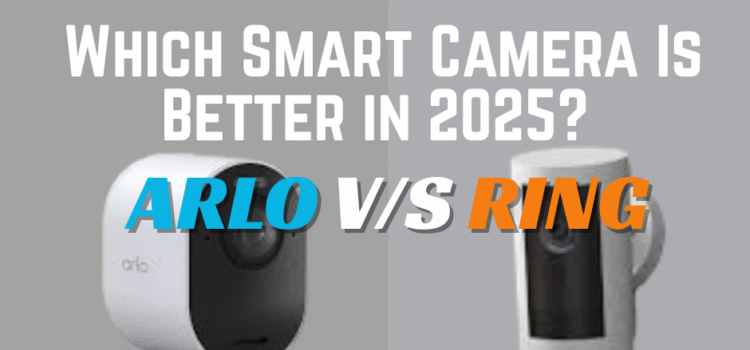
Ring and Arlo are two big names in home security. Both offer smart cameras with useful features. But which one is better in 2025? Let’s compare them across what matters most—video quality, features, ease of use, price, and more. By the end, you’ll know which one fits your home better.

Video Quality

Both brands offer clear video, but Arlo has the edge here.
Arlo cameras often support 2K or even 4K video. This means sharper images and better zoom. You can see faces and license plates more clearly.

Ring cameras mostly offer 1080p HD. The video is good, but not as sharp as Arlo’s high-end models.
For most people, 1080p is fine. But if you want top detail, Arlo wins this round.

Winner: Arlo

Field of View

Field of view means how much area the camera see.

Ring offers wide views, often around 140–155 degrees.

Arlo is similar. Some Arlo models reach 160 degrees.

Both let you see a wide area, like your whole porch or driveway. The difference is small.

Winner: Tie

Smart Motion Detection

Smart motion alerts help you know when something important happens.

Ring uses standard motion zones. You can draw boxes in the app to mark where alerts should come from. Newer models have radar for more accurate alerts.

Arlo goes further with AI. It can tell the difference between people, animals, vehicles, and packages. You get fewer false alerts.

This makes Arlo better if you want smarter motion tools.

Winner: Arlo

Night Vision

Both Ring and Arlo offer infrared night vision. This means they can see in the dark.

Arlo offers color night vision on many models. It also tends to show better detail in low light.

Ring offers solid night vision too, but it’s mostly black-and-white unless there’s a light source nearby.

For clearer nighttime footage, Arlo performs better overall.

Winner: Arlo

smart

WHO WILL WIN IN 2025?

Smart Features

This is where things get interesting.

Ring works well with Alexa. You can view live video on Echo Show devices or use voice commands. It also supports Ring Alarm, smart lights, and doorbells in one system.

Arlo works with Alexa, Google Assistant, and Apple HomeKit. This makes it more flexible if you use Apple or Google smart homes.

Arlo also has better smart alerts, like package detection and rich notifications.

Winner: Arlo for flexibility, Ring for full system control

Storage and Plans

Both brands offer free features, but most users will want a paid plan.

Ring Protect Plan:

  • $4/month per camera
  • $10/month for unlimited cameras
  • 180-day cloud storage
  • Snapshot capture
  • Person alerts

Arlo Secure Plan:

  • $4.99/month per camera
  • $12.99/month for unlimited cameras
  • 30-day cloud storage
  • Smart alerts and activity zones
  • Emergency response

Arlo gives better AI alerts, but Ring offers longer video storage at a lower cost.

Winner: Ring for value, Arlo for smart features

Local Storage

Arlo supports local storage. You can insert a microSD card or use a base station to save clips.

Ring does not support local storage on most cameras. You need the cloud plan to save video.

If you want to store video without monthly fees, Arlo is better.

Winner: Arlo

Ease of Use

Both systems are easy to install and use. They come with good apps and simple setups.

Ring’s app is clean and easy to learn. It shows all your devices in one place. You can check events, set motion zones, and view live feeds fast.

Arlo’s app is also good but can feel a bit more advanced. Some settings take a little longer to find.

For first-time users, Ring may feel easier. For tech-savvy users, Arlo offers more options.

Winner: Ring for ease, Arlo for control

Battery Life and Power

Both brands have battery-powered and wired options.

Ring’s batteries often last a few months with light use. Charging is easy with quick-release packs.

Arlo’s batteries also last around two to six months. Some Arlo models come with solar panels or removable packs.

Both do well here, but Arlo offers more flexible power options, like swappable batteries and solar charging.

Winner: Arlo

Price

Price depends on the model, but here’s a basic idea:

  • Ring Indoor Cam (2025): around $60
  • Ring Stick Up Cam Battery: around $100
  • Floodlight Cam: around $180
  • Arlo Essential Indoor Cam: around $80
  • Arlo Pro 4: around $200
  • Ultra 2 (4K): around $300+

Ring has more budget-friendly models. Arlo leans higher, especially for its 2K and 4K options.

Winner: Ring

Support and Reliability

Ring is owned by Amazon and has wide support. The app works well, and updates come often. It also offers 24/7 support.

Arlo has solid support too, but some users say response times can be slower.

Ring also has fewer bugs and fewer app crashes based on user reviews.

Winner: Ring

Best for You?

Here’s a quick summary based on needs:

Pick Ring if you want:

  • A lower price
  • Simple setup
  • Long cloud storage
  • Tight Alexa integration
  • Easy home security bundles

Pick Arlo if you want:

  • Higher video quality
  • Smart alerts with AI
  • Flexible smart home options
  • Local storage
  • Better night vision

Both are solid choices. It depends on what matters most to you—cost, video detail, or smart features.

Conclusion

Ring is great for beginners. It’s easy to use, priced well, and offers long storage with simple plans.

Arlo is better for advanced users. You get sharper video, smarter alerts, and more control.

If you’re just starting out or on a tight budget, go with Ring. If you want the best picture and AI alerts, Arlo is worth the extra cost. Either way, you’re getting a good camera in 2025. Just match the brand to your needs—and enjoy a safer home.

Smart homes make life easier. You can lock doors, turn off lights, and watch cameras from your phone. But all that tech comes with a risk—hackers.If your smart home isn’t secure, someone could break in without even stepping inside. They could spy on you, control your devices, or steal personal info.The good news? You can protect your smart home with a few smart habits. Here are expert tips to keep hackers out and your home safe.

Use Strong, Unique Passwords

This is the most basic rule, but many people still skip it. Don’t use “123456,” “password,” or your name. Those are easy to guess.Use different passwords for each device and account. That way, if one is hacked, the others stay safe.

Tips:

  • Use at least 12 characters
  • Mix letters, numbers, and symbols
  • Don’t reuse passwords from other sites
  • Store them in a trusted password manager

Even your Wi-Fi and smart fridge need strong passwords. Hackers look for weak spots—don’t give them one.

Set Up Two-Factor Login

Two-factor login (also called 2FA) adds a second lock to your account. Even if someone knows your password, they still need a code from your phone.Most smart home apps support this. You just turn it on in your settings. It only takes a few seconds, and it makes your account much safer.

Always use it on your:

  • Smart home apps
  • Router admin panel
  • Email tied to your smart devices

This small step can stop big problems.

Secure Your Wi-Fi Network

Your Wi-Fi is the front door to your smart home. If it’s not locked down, hackers can get into every device.

Here’s what to do:

  • Change the default network name (SSID)
  • Use a strong Wi-Fi password
  • Set the encryption to WPA3 (or WPA2 if needed)
  • Turn off guest access if you don’t use it
  • Hide your network from public view if possible

Don’t name your Wi-Fi something like “John’s Home” or “Apartment 2B.” That gives away too much.

Keep Smart Devices Updated

Software updates may seem annoying, but they often fix security holes.Hackers love outdated devices. Updates patch bugs and make it harder to break in.

Always:

  • Turn on auto-updates if possible
  • Check for firmware updates on smart devices every month
  • Keep your router software up to date

Even your doorbell camera needs updates. Don’t ignore them.

Use a Separate Network for Smart Devices

Most routers let you make a second Wi-Fi network. Use it just for your smart home. This keeps your personal stuff—like your phone and laptop—on one network, and smart gadgets on the other.

Why it works:

  • If a smart device is hacked, your personal info stays safe
  • You control what connects where
  • It keeps traffic separate and cleaner

You can name your networks something simple, like “MainWiFi” and “SmartWiFi.”

Rename Your Devices

Don’t leave devices with their factory names, like “Camera123” or “TP-Link Plug.” Those tell hackers what you’re using. Give each device a name that only makes sense to you.

Examples:

  • “BackCam” instead of “Reolink RLC-520”
  • “Lamp01” instead of “TPLink HS105”

This won’t stop hacking by itself, but it gives away less info. That’s always good.

Turn Off Features You Don’t Use

Many smart devices come with extras like remote access, voice control, or cloud backup. If you don’t use them, turn them off. The more features you leave open, the more doors hackers can try.

For example:

  • If you never check cameras from outside, turn off remote viewing
  • If you don’t need voice commands, disable the mic
  • If you store videos locally, turn off cloud storage

Only use what you need. Less is safer.

Watch for Fake Apps

Hackers sometimes make fake smart home apps that steal your info.

Only download apps from official app stores. Before installing, check:

  • The company name
  • App reviews
  • Number of downloads
  • Permissions it asks for

If something looks off, skip it. Also, never scan random QR codes unless they’re from the box or the brand website.

Use a Firewall

A firewall helps block outside threats. Many routers have built-in firewalls. Make sure yours is turned on. For more protection, some people buy separate firewall boxes. These sit between your modem and router.

They can:

  • Block suspicious traffic
  • Limit access to certain devices
  • Give alerts if something looks wrong

It’s not required, but it adds a layer of safety—especially if you have many devices.

Log Out and Factory Reset When Needed

If you stop using a device, don’t just unplug it. Remove your account, log out, and do a full factory reset. This clears your personal info from the device. Also, if you sell or give away a smart device, reset it first. That keeps your info safe and avoids confusion for the next user.

Review Device Settings Often

Set a reminder to check your devices every few months. Look for:

  • New features added by updates
  • Devices still connected but not in use
  • Any new login activity
  • Permissions that may have changed

Hackers often wait for weak moments. A quick review can help you catch problems early.

Don’t Share Access With Everyone

Only give app access to people you trust. For guests, use temporary codes or guest accounts if your system allows it. Avoid giving out your login. If someone needs access, see if you can share control without handing over the keys. If someone moves out or leaves your team, remove their access right away.

Conclusion

Smart homes are fun and helpful—but only if they’re safe. Hackers look for easy wins. Don’t make it easy for them. You don’t need to be a tech pro. Just follow the steps:

  • Use strong passwords
  • Set up two-factor login
  • Keep Wi-Fi and devices secure
  • Update everything often
  • Limit access and features

It only takes a little time to lock things down. Once done, you can relax and enjoy your smart home—without worry.

Home security has changed a lot in recent years. Cameras are no longer just silent watchers. With AI, they now think, learn, and react. They help spot problems faster and cut down on false alarms. This change has made homes safer and smarter. Here’s how AI is shaping the future of home surveillance.

Smarter Motion Detection

Old cameras recorded everything that moved. That meant birds, shadows, and even tree branches triggered alerts. This wasted time and filled up storage fast. AI cameras can now tell the difference between a person, pet, or car. They only record what matters. This saves space and keeps alerts useful. Some systems even let you set zones. For example, you can block off the street view so passing cars don’t trigger an alert.

Facial Recognition

Some AI cameras can recognize faces. When someone walks up to your door, the system checks if it’s someone you know. You can:

  • Get alerts when family members arrive
  • Spot strangers near your door
  • Review clips by name, like “Tom” or “Mom”

You can also mark faces as trusted or untrusted. Trusted faces won’t send alerts. Untrusted ones will. Not all systems offer this. And not everyone wants it. Still, it’s a strong feature if used carefully and with privacy in mind.

Real-Time Alerts

AI makes alerts faster and more helpful. Instead of just saying “motion detected,” your app might say:

  • “Person spotted in backyard at 2:43 p.m.”
  • “Unknown face at front door”
  • “Car pulled into driveway”

This gives you context. You can decide fast if it’s a threat or not. Some systems even send a photo or short clip with the alert. That means you don’t need to open the app to check.

AI

Integration with Other Smart Devices

AI-powered cameras often link with other smart devices. This can trigger actions based on what the camera sees. For example:

  • If a person is seen, turn on porch lights
  • Open the garage, If a car pulls in,
  • When stranger is detected, lock the doors.

These small steps add up to stronger safety and more convenience.

Smart Audio Features

Many AI cameras now include audio tools. This helps in two ways:

  1. Two-way talk: Speak to someone at your door without opening it.
  2. Sound alerts: AI can detect things like glass breaking, smoke alarms, or shouting.

If the system hears something strange, it alerts you—even if there’s no motion. This makes cameras more aware of their surroundings.

Activity Summaries

Going through hours of video is boring. AI now helps you skip to the good parts. Many systems create:

  • Daily summaries
  • Event highlights
  • Time-lapse clips

You can quickly see what happened in one minute instead of watching all day. Some systems sort clips by type—people, cars, animals, or sounds. This helps you find what you’re looking for fast.

Learning Over Time

AI cameras get better the more you use them. If you always ignore alerts for your dog, the system learns to stop sending them. If you always respond to visitors at the door, it starts flagging those as top priority. This learning makes the system feel more personal. It works the way you want it to.

Cloud and Local AI Processing

Some systems utilize the cloud to run AI, while others do it directly on the device.

  • Cloud-based AI: Needs Wi-Fi and sends data to remote servers. Often more powerful.
  • On-device AI: Works faster and protects privacy better. No need to send data online.

Brands like Arlo, Nest, and Eufy now offer both types, depending on your needs and budget.

Privacy and Control

AI brings great features—but privacy matters too.Here are ways to stay in control:

  • Turn off face tagging if not needed
  • Use strong passwords
  • Keep your app and camera software updated
  • Use encrypted storage if offered
  • Check logs to see who accessed video

Some systems let you pause cameras or mute alerts when you’re home. Others blur faces in saved clips unless you approve. The best systems give you full control over what’s recorded and when.

Lowering False Alarms

One of the biggest wins from AI is fewer false alarms. Before, a bug could trigger a motion alert. Now, the system checks the shape, speed, and size of objects before sending you a message. This saves you from looking at endless pointless clips. You only get alerts that matter.

Crowd Detection and Package Watching

AI cameras also help with two growing issues—crowds and package theft.

  • Crowd detection lets you know if too many people gather near your door.
  • Package detection alerts you when a box is dropped off. Some cameras even watch the package until it’s picked up.

Some even work with smart locks, so you can see a visitor and unlock the door if needed.

Emergency Help

Some AI systems offer built-in help buttons or panic modes. If something serious happens, you can tap a button to alert police, fire, or medical teams. Other systems detect threats like fire or gas leaks and alert you right away. This brings peace of mind, especially when you’re not home.

Conclusion

AI has changed how we use home security cameras. It helps you see real threats, not just movement. It gives you control, speed, and peace of mind. With smart alerts, face tagging, and event summaries, you no longer have to guess what’s going on. Setting up AI cameras is easier than ever. You don’t need to be a tech expert. Just follow the app, place the camera, and go. As AI keeps improving, home security will only get smarter, and life will get a little safer every day.